
SoCatch for PC
SoCatch is a new version of iWatch DVR which is a H.264+H.265 DVR remote viewer
- Rated
- Mature 17+
- Developer
- andi.pratama
- Installs
- 1.2M+
- Google Play
- 3.4 (1.7K)
- Size
- 95.2 MB
What's new
This update continues the stability work from the prior release, now addressing specific bugs and applying further optimization to the app's core functions.
Version 1.5.13 · · 95.2 MBLatest
The update resolves identified bugs and refines app performance. These changes maintain the reliability gains achieved in connection handling and crash reduction, supporting smooth operation across live streaming, time-based search, and PTZ control workflows.
Version 1.5.11 · · 40.2 MB
The improvements target the connection layer and playback pipeline to eliminate the crashes and UI freezes that previously occurred. Release build optimization reduces memory overhead and improves responsiveness across live view and time-search playback scenarios.
About SoCatch for PC
Key facts
- SoCatch is a mobile application designed for remote surveillance, allowing users to watch security feeds from anywhere.
- The app supports a live view feature enabling users to watch live videos directly on their smartphones without disruptions.
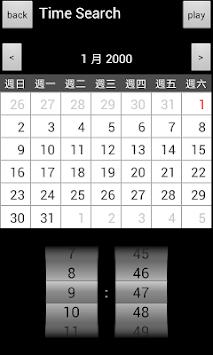
- It includes a time search option, which allows users to quickly locate and play back recordings from specific times.
- SoCatch has a zoom view feature that lets users zoom into specific areas of the video feed for closer examination.
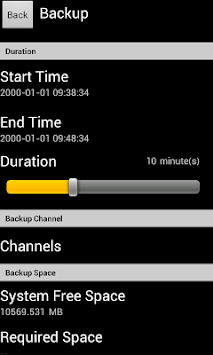
- The application offers the possibility to back up video files, ensuring that data can be saved and accessed later as needed.
Free download SoCatch for PC Windows or MAC from BoscoApp. andi.pratama published SoCatch for Android operating system(os) mobile devices. However if you ever wanted to run SoCatch on Windows PC or MAC you can do so using Android emulator. At the end of this article you will find our how-to steps which you can follow to install and run SoCatch on PC or MAC.
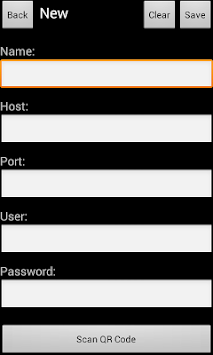
When we have surveillance cameras in our homes or our offices, we often want to watch what’s happening remotely. We can’t be dependent on in-home servers that will keep us tied and can only let us watch the videos or live feed when we’re in the home or at the office. This is where you need an app like SoCatch. The name might be a bit different but the idea of the app is to enable users to watch all their security feeds no matter where they are. This is the new way to protect and understand what’s happening around our homes.
Live View
When you have the SoCatch app, you can now easily watch all your videos live. You don’t have to think twice about different settings or things, you can enjoy the comfort of your app. You can open the app on your smartphone and watch all those videos without any sort of disturbance. This also allows you to experience a greater viewing environment.
Time Search and Play
When you’re looking for a specific time and recordings at that time, you don’t have to manually scroll back. The TIme search option lets you search for that time and play those videos from then. This is a beautiful feature for when you’re looking for any specific evidence or timely events.
Zoom View
When you’re watching the live feed through your SoCatch app, you’ll probably need to get a closer look at a particular part of the video. You can easily zoom into the screen. The app has a great zoom feature that lets you have a closer look to understand what’s happening.
Backup Files
When you’re using the SoCatch app, you might have a fear of losing your videos or your data. Here’s why SoCatch will be of great help to you. With the SoCatch app, you can now record all those events and have them on your device. You can back up all these files and access them at a later time.
When you need a reliable app for all your security feeds, then you can use the SoCatch app. Not only is it built with some amazing features but it can help you to a great extent. Start recording using the SoCatch app now!
Let's find out the prerequisites to install SoCatch on Windows PC or MAC without much delay.
Select an Android emulator: There are many free and paid Android emulators available for PC and MAC, few of the popular ones are Bluestacks, Andy OS, Nox, MeMu and there are more you can find from Google.
Compatibility: Before downloading them take a look at the minimum system requirements to install the emulator on your PC.
For example, BlueStacks requires OS: Windows 10, Windows 8.1, Windows 8, Windows 7, Windows Vista SP2, Windows XP SP3 (32-bit only), Mac OS Sierra(10.12), High Sierra (10.13) and Mojave(10.14), 2-4GB of RAM, 4GB of disk space for storing Android apps/games, updated graphics drivers.
Finally, download and install the emulator which will work well with your PC's hardware/software.
How to Download and Install SoCatch for PC or MAC:
- Open the emulator software from the start menu or desktop shortcut in your PC.
- You will be asked to login into Google account to be able to install apps from Google Play.
- Once you are logged in, you will be able to search for SoCatch and clicking on the ‘Install’ button should install the app inside the emulator.
- In case SoCatch is not found in Google Play, you can download SoCatch APK file and double clicking on the APK should open the emulator to install the app automatically.
- You will see the SoCatch icon inside the emulator, double clicking on it should run SoCatch on PC or MAC with a big screen.
Follow above steps regardless of which emulator you have installed.